Bookings & waitlist
The host stand. Two lists side by side: people who phoned ahead, and people standing in front of you right now. Both live next to the floor plan, because seating either of them is the same job.
A booking is a party expected at a time — it has a clock counting down to it. The waitlist is for people already at the door with no table free — it has a clock counting up. Same buttons, opposite direction.
Taking a booking over the phone
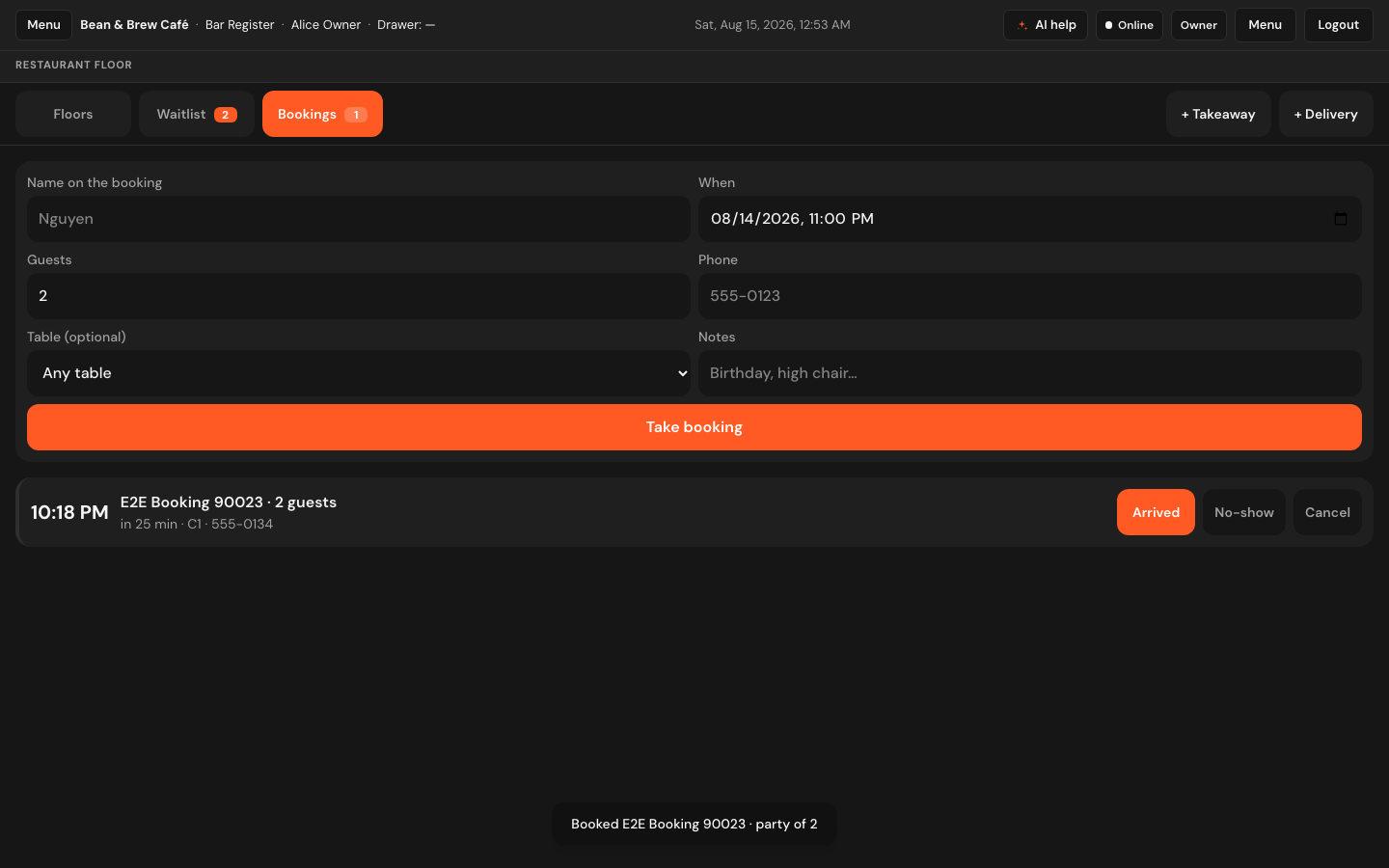
On the restaurant POS, tap Bookings at the top of the floor screen. The form is at the top, the diary underneath.
- Name on the booking — required. Whatever they will say at the door.
- When — date and time. It is pre-filled to the next half hour, so most bookings are two taps from done.
- Guests — party size.
- Phone — worth taking. It is the only way to chase a party who has not turned up.
- Table (optional) — leave it on Any table or promise them a specific one. The list shows each free table with how many it seats.
- Notes — birthday, high chair, wheelchair, the window one.
- Tap Take booking.
Reading the diary
Bookings are listed in time order, soonest first, and each row shows the time in big figures, the name and party size, then a line that tells you where it stands:
| The line reads | Meaning | The row |
|---|---|---|
| in 25 min | Still to come. | Plain edge. |
| Due now | Their time has arrived, or is about to. | Amber edge. |
| 12 min late | More than ten minutes past their time and nobody has walked in. | Red edge. |
Alongside that, the row prints the promised table, the phone number and any notes, so you never have to open a booking to know what it needs. The Bookings tab itself carries a badge counting parties due within the hour — the amount of trouble you are about to have.
The countdown keeps itself honest. A host stand sits untouched for hours at a time, so the times recalculate on their own every half minute rather than freezing at whatever the screen said when someone last touched it.
Seating an arrival
- The party walks in. Find their row and tap Arrived.
- Their tab opens on the table they were promised, with their party size already filled in, and the screen goes straight to the order pad.
- Take their drinks order. Everything from here is on Taking orders.
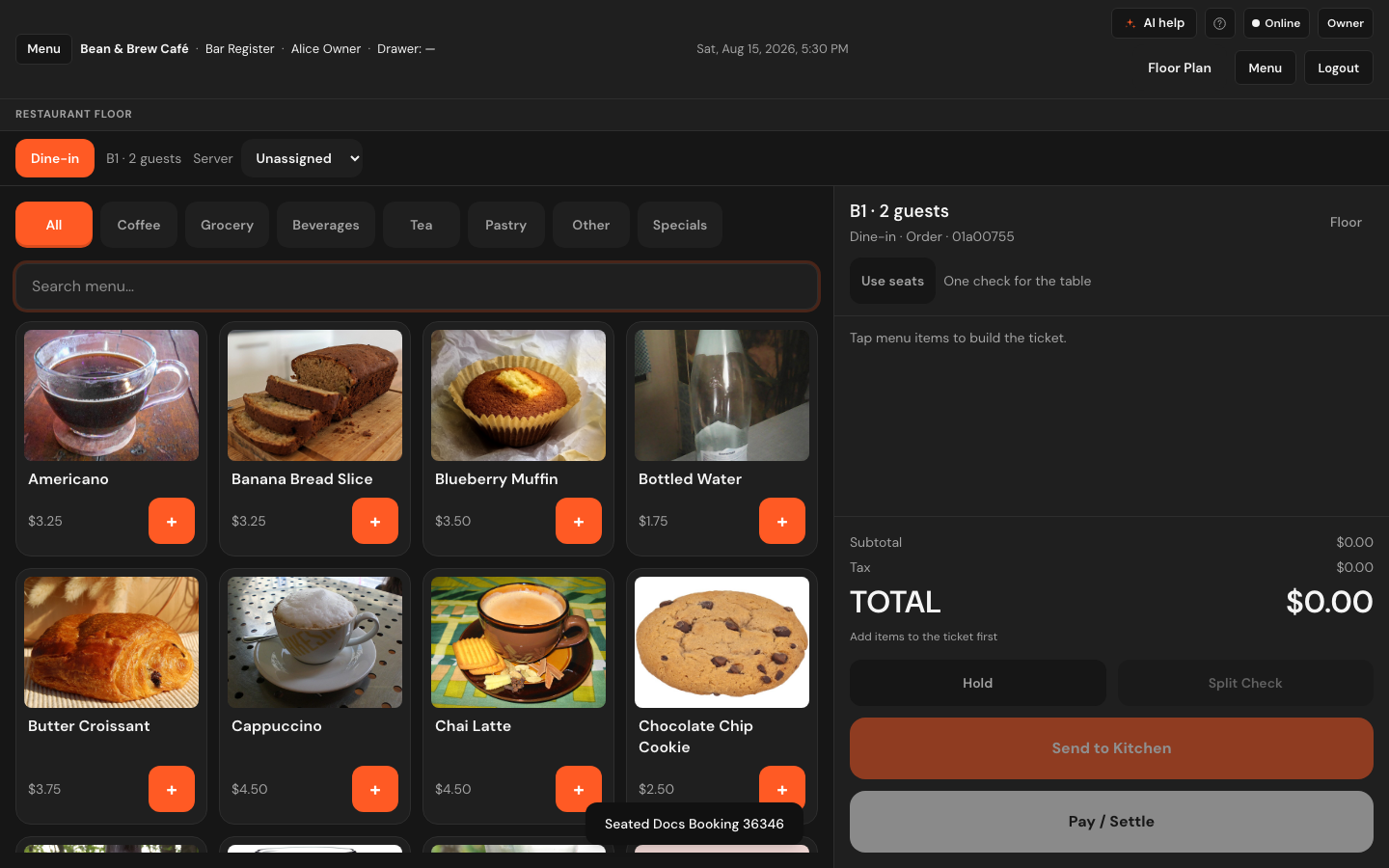
The party is seated on the table the booking named, even if you did not go and pick it yourself — that is what promising a table means. The floor plan updates for every other till at the same time.
If the booking had no table
A booking taken as Any table has nothing to open, so Arrived tells you plainly: … arrived — pick a table to open their tab. Go to Floors, tap a free table and seat them there. The booking is not lost and the party is not silently seated nowhere.
No-shows and cancellations
| Button | Use when |
|---|---|
| No-show | Their time came and went and nobody arrived. Ring the number first if you have it — most no-shows are people running late. |
| Cancel | They phoned to cancel, or you cancelled it for them. |
Both take the booking off the diary and free the table for walk-ins. The difference is the record: a no-show says they did not turn up, a cancellation says they told you. Keeping them apart is the only way to know later whether a name is worth holding a table for.
A red row is holding a table that a walk-in could be sitting at. If you have decided they are not coming, mark it and move on — the point of the red edge is to prompt a decision, not to be lived with.
The walk-in waitlist
Tap Waitlist, next to Bookings. Same idea, no clock to count down to — these people are already here.
Adding a party
- Under Add party, type the Name and Size.
- Take a Phone number if you can, so you can call them back from the bar or the pavement.
- Set the Quote (min) — how long you are telling them it will be. It is pre-filled with your store's usual quote.
- Notes — High chair, booth, allergies…
- Tap Add to waitlist.
The queue
Parties are numbered in order, and each card shows the party size, what you quoted them, and how long they have actually waited — quoted 20m · waited 31m. Those two numbers next to each other are what tells you when to go and say something to somebody.
Seating from the waitlist
- Tap Seat on their card.
- A panel shows every free table with its seats and which area it is in. Anything too small for the party is greyed out and says too small — you cannot put a four-top on a two-top by accident.
- Tap the table. Their tab opens and you are on the order pad.
If there is nothing to give them it says No open tables. Free a table on the Floors tab first.
Waiting parties also have Cancel and No-show — for the ones who leave, and the ones who are not there when their table finally comes up.
Both lists live on the server, not on the tablet at the door. Seat a party from the host stand and the bar's screen knows; take a booking on the bar's screen and the host sees it. There is a full-page waitlist at Operations → Waitlist if you would rather run the door from its own screen.