Floor & tables
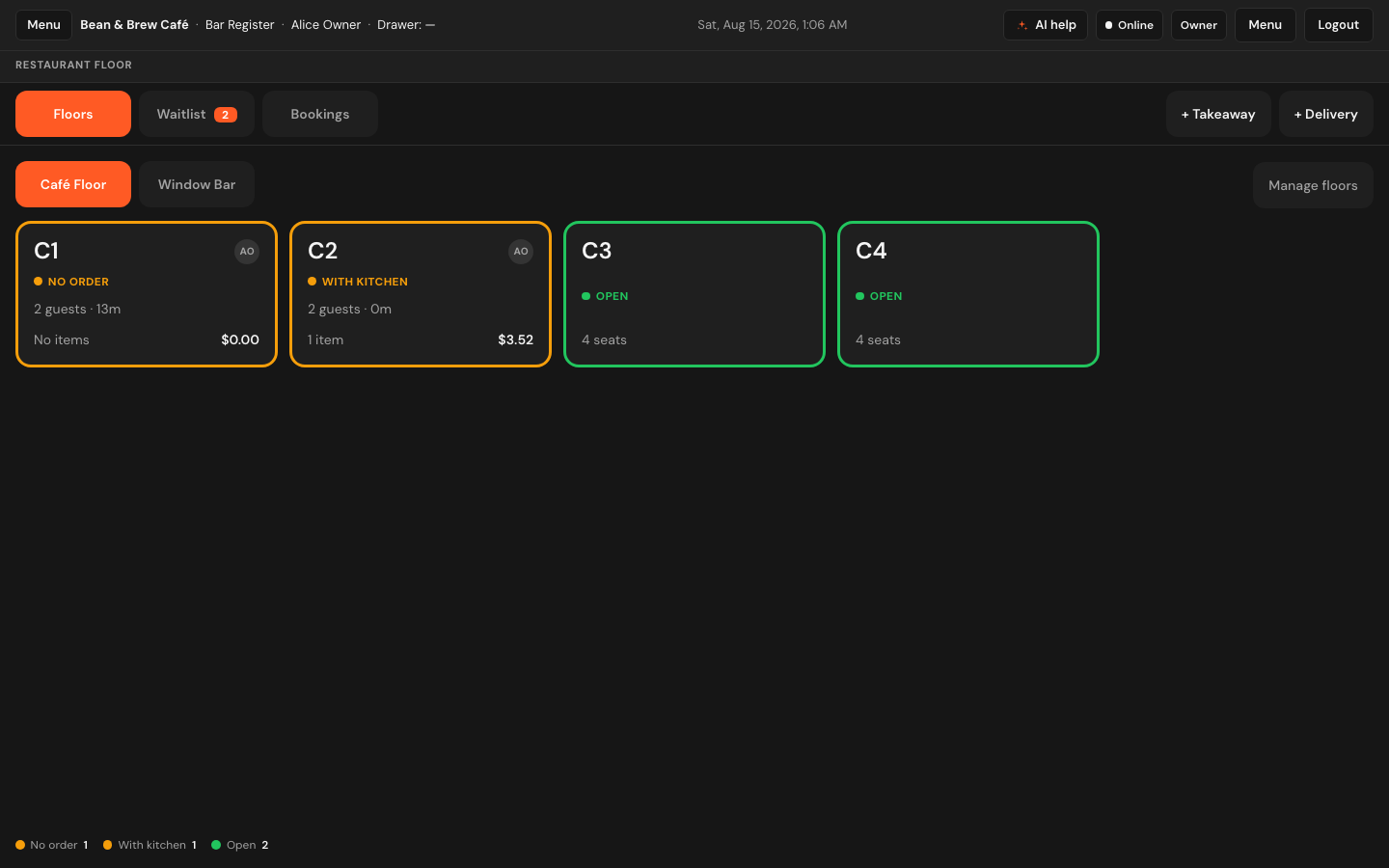
The floor plan is the first thing a server looks at and the thing they come back to between every trip. It is built to be scanned, not read: colour tells you what a table needs, and the tables that need something sit at the top left where your eye lands first.
The layout
- Floors, Waitlist and Bookings across the top — the host's three views. The waitlist and bookings tabs carry a number when parties are waiting or due within the hour.
- + Takeaway and + Delivery on the right, for orders with no table at all.
- A row of dining areas underneath — Café Floor, Window Bar, whatever your rooms are called. Tap to move between them.
- Manage floors, which is where tables get added and renamed.
- The tables themselves, and a legend along the bottom that doubles as a tally of how many are in each state.
What each table state means
The raw truth is only "somebody is sitting there or not". A server needs to know the thing that decides where they walk next, so the floor plan works out a state per table and prints a word on the card.
| Card says | What is true | What to do about it |
|---|---|---|
| Bill | The table has asked for the check. | Take it to them. This one sorts to the very front — it is the only thing a guest actively waits on. |
| Ordered | An order has been taken but nothing has gone to the kitchen. | Send it. Nobody is cooking anything for this table yet. |
| No order | Guests are seated with nothing on the ticket. Under five minutes the card just says Just seated; after that it starts asking for attention. | Go and take the order. |
| Long stay | Ordered, food is away, and they have been sitting an hour and a half or more. | Offer the bill. Not a telling-off — a nudge that the table could turn. |
| With kitchen | Order taken, food sent, everything is in hand. | Nothing. This is a table going well. |
| Reserved | Held for a booking. | Leave it — unless the party is standing in front of you, in which case tap it and seat them. |
| Open | Free. The card shows how many it seats. | Seat someone. |
| Blocked | Not in service. | Nothing. The card is dimmed and cannot be tapped. |
Colour and order
Every card carries a coloured border and a dot in its state's colour, and the tables that want something are outlined so they stand out from the ones that do not. Within a dining area the cards are sorted by what needs attention first — Bill, then Ordered, then No order, then Long stay, then With kitchen, then Reserved, then Open, then Blocked — and within a state, the table sitting longest comes first. So the top left of the screen is always the next place to walk.
The timer
A seated card shows how long the party has been down: 13m,
then 1h 20m, then hours and days if something has gone wrong.
Two thresholds change the card:
| At | The card… |
|---|---|
| 5 minutes seated with nothing ordered | flips from Just seated to No order and starts asking for attention. |
| 90 minutes seated | becomes Long stay — Sitting a while — offer the bill. |
If a card claims a party has been there twelve hours, nobody is still eating: the tab was left open, probably overnight. Hovering it adds check this tab to the detail. Open it and settle or clear it.
The rest of the card
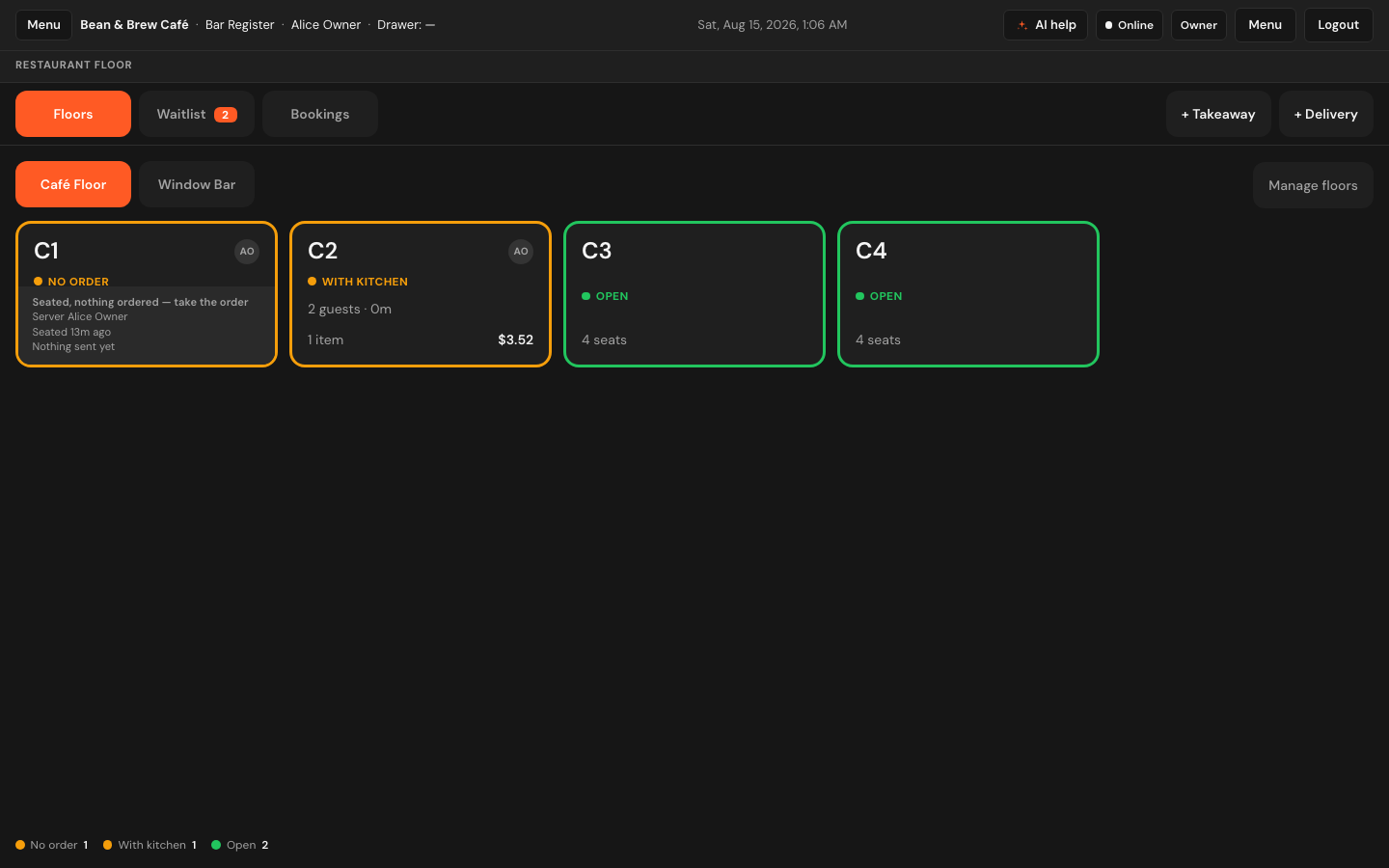
A seated card shows the guest count, the timer, the number of items on the ticket and the running total. The circle in the top corner is the server's initials. Hovering a card — or reaching it with the keyboard — slides up more detail: what to do next, the server's full name, how long ago they sat, and whether anything has gone to the kitchen.
Seating guests
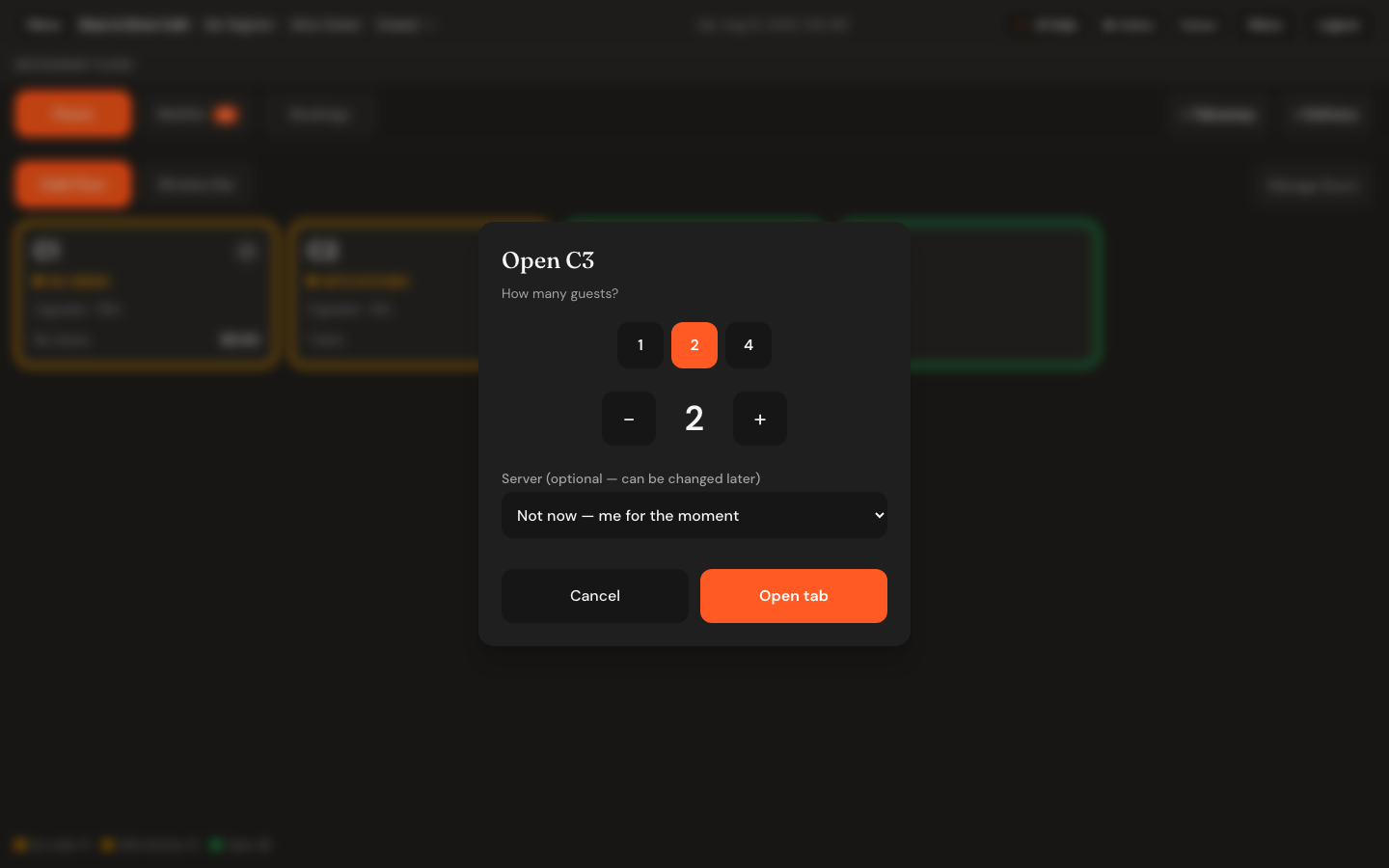
- Tap an Open (or Reserved) table. A window opens: Open C3, How many guests?
- Tap one of the preset numbers, or use the big − and + to land on the exact count. The presets stop at the number the table actually seats.
- Choose a Server if you want to — see below.
- Tap Open tab.
The table turns seated, its timer starts at zero, and the screen goes straight to the order pad. Taking the order is covered in Taking orders.
Coming back to a seated table
Tap it. The tab reopens exactly as it was, with everything already on the ticket. Nothing is lost by leaving a table and going back to the floor — that is the normal rhythm of a shift.
Choosing — or handing over — a server
The Server dropdown when you seat a table has a first option that reads Not now — me for the moment, and it is a real answer rather than a skipped field. A table gets opened by whoever is nearest the door, which is very often not the person who will look after it.
- Seat the party under whoever opened the tab.
- When service settles, open the table.
- In the bar above the ticket, use the Server dropdown to pick the person taking it on.
- The screen confirms — … now has C1 — and the initials on the floor card change to theirs.
That is why picking a server up front is optional: the handover is the normal case, not the exception. Choose Unassigned to take the name off entirely.
A takeaway or delivery order has no table, so there is nobody to hand it to. The dropdown only appears on a table's ticket.
When the floor is empty
A store with no tables set up says No tables on this floor yet with a link to Add tables in floor settings. A live restaurant never shows pretend furniture — an empty floor is an honest answer, and seating a made-up table would break the moment you tried to send its food to the kitchen. Set your rooms and tables up in Settings → Floors, or via Manage floors from this screen.
If it says Could not load the floor plan, that is a connection problem, not a setup one. Tap Try again.
Tables are seated and settled from other tills all service long, so this screen refreshes itself every twenty seconds. You never need to reload it.