Receipts
What the customer walks out with. How to print it, what the barcode across the bottom is for, how to get a copy of an old one, and how to change the wording without ringing up a test sale to see it.
The receipt screen
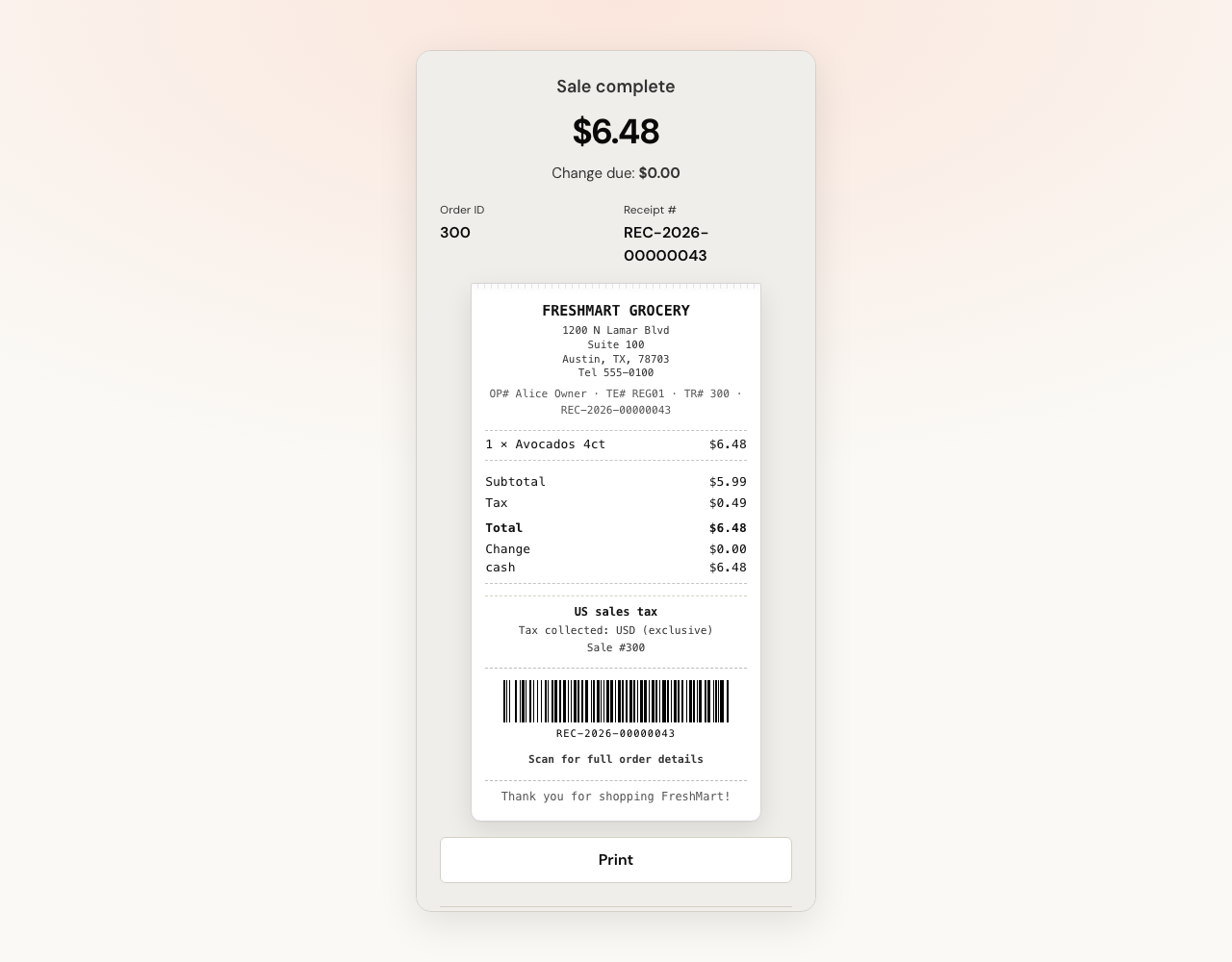
The moment a sale is paid, the till switches to the receipt screen. It says Sale complete, shows the amount and the change due, then two numbers side by side:
| Number | What it is |
|---|---|
| Order ID | The sale's Order #. It is issued at the moment the sale is paid, so this screen is the first place it exists. Sales are numbered in order for the store — see below. |
| Receipt # | The receipt's own number, like REC-2026-00000040.
This is the one printed under the barcode and the one to quote for a
return. |
Under those is the receipt itself, laid out as it will print.
Printing
- Tap Print, or just press Enter — the screen says Press Enter to print for exactly that reason.
- Your browser's print dialog opens with only the receipt on it; the rest of the till screen is hidden from the printout.
- Choose the receipt printer and print.
- Tap New sale, or press Esc, to clear down for the next customer.
Print and New sale are pinned to the bottom of the panel, so a long receipt never pushes them off the screen with a queue waiting. Both keys work from the receipt screen itself; typing in a box or sitting on a button first does not trigger them.
Printing goes through the browser's normal print dialog to whatever printer the computer has. There is no direct driver for thermal printers and no cash-drawer kick — a receipt printer works if the operating system can already print to it. Set the paper size to your roll width (commonly 80 mm) in the printer settings once, and it will stick.
Print is deliberately the smaller button and New sale the big one: after a sale the next thing that happens is almost always the next customer, and only sometimes a printout.
What is on the receipt
| Part | Where it comes from |
|---|---|
| Logo | The Receipt logo you upload in settings. |
| Heading | The Header text in settings, or the store name if it is blank. |
| Address, phone, email | The store's own address block. A receipt with no way to reach the shop is no use when something is wrong with the order. |
| OP# / TE# / TR# | Operator, terminal and transaction — the cashier, the register and the sale number — followed by the receipt number. |
| Items and totals | The sale. Several tax rates are listed by name; one rate just prints as Tax. |
| Change | Printed only when there is change to hand over. A change line reading 0.00 is a line about nothing, and on a card sale it would print every time. |
| You saved … | Under the total, when the sale had any discount at all. See below. |
| Payments | Each tender taken, by type — cash, card, gift card, points and the rest. |
| Gift card balance | One line per card the sale spent or loaded: Gift card ••••0001 balance and what is on it now. Only the last four digits, ever — the code is the money. |
| Points | What this sale did to the customer's balance and what is left. Printed on refunds too, including a clawback. |
| Store credit balance | The new balance after a refund into store credit, or after a sale spent some. |
| Tax block | The country's fiscal wording, where the store's country needs one. |
| Barcode | The receipt number, as a scannable code. |
| Footer | The Footer text in settings, or Thank you. |
A gift card, a points balance and a store credit balance have one thing in common: once the customer walks out, the slip is the only place they can read the new number. Nobody at the register can look a gift card up without the card in hand, and a customer who just spent 500 points has no way to check what is left until they are home. So each of those three prints its new balance on the receipt, and a refund prints it too.
A gift receipt leaves all three off and masks the total. It is meant to be handed to somebody who is not paying.
"You saved $2.50 today"
When anything came off the sale, the receipt says so in its own line under the total — You saved $2.50 today — as well as in the Discount line inside the arithmetic.
It counts the sale's whole discount total, whatever produced it: a campaign that came off automatically, a coupon, a customer's standing discount, or a cashier's percentage off one line. A sale with no discount prints no such line.
The reason it is repeated is that a discount buried among subtotal and tax is arithmetic, and this is the sentence a customer reads out to somebody else. See Promotions for what puts a figure there.
The barcode
The barcode encodes the receipt number. That is what gets scanned back across the counter when someone returns something: in refund mode on the till, scan the barcode on their receipt and the sale loads with all its lines. See Refunds & returns.
The wording under it, Scan for full order details, refers to the customer-facing copy of the order — a receipt can carry a private link with a one-time token so the customer can look up their own order later.
The Order # is issued when the sale is paid
A ticket does not take an Order # when it opens. The number is issued at the moment the payment goes through, which is why the receipt screen is the first place you ever see it.
Until then the sale carries a short reference instead — the first eight
characters of its own internal id, like 01a008a3. That is what the
restaurant ticket header shows on an unpaid check: Order ·
01a008a3.
The number used to be handed out when the ticket opened, so every stray "+ Takeaway" and every abandoned table burned one. On one store the sequence had reached 76 open tickets against 25 real sales, with numbers missing from the middle for good. A customer-facing number for a sale nobody paid for is worse than no number.
- Numbers run in order, per store — Store A 1, 2, 3…; Store B 1, 2, 3… Every register in a store shares one sequence.
- A sale that fails on the way through — no stock, no open drawer — leaves no gap, because it never took a number.
- If a payment is retried and the sale was already paid, it keeps the number already printed rather than taking a second one.
- A refund and an exchange each get their own number when they are made.
The receipt number — REC-2026-00000040 — is a
different thing entirely, belongs to the receipt rather than the sale, and is
the one under the barcode. Either can be typed into the search box on
Orders or in refund mode.
Reprinting an old receipt
- Go to Orders in the sidebar.
- Find the sale — the search box takes a receipt or order number, and each row shows both.
- Open it and tap Print / reprint.
The reprint is clearly marked REPRINT in its header, so a second copy can never be mistaken for the original. You can reprint completed, voided and refunded sales; a ticket that is still open has nothing to reprint yet.
If your role can resend receipts, and a provider is configured, two more buttons appear here: Email receipt and SMS receipt.
Changing the wording, with a live preview
Go to Settings → Receipt & branding. Everything on this tab applies to the store you have selected, not to every store in the company.
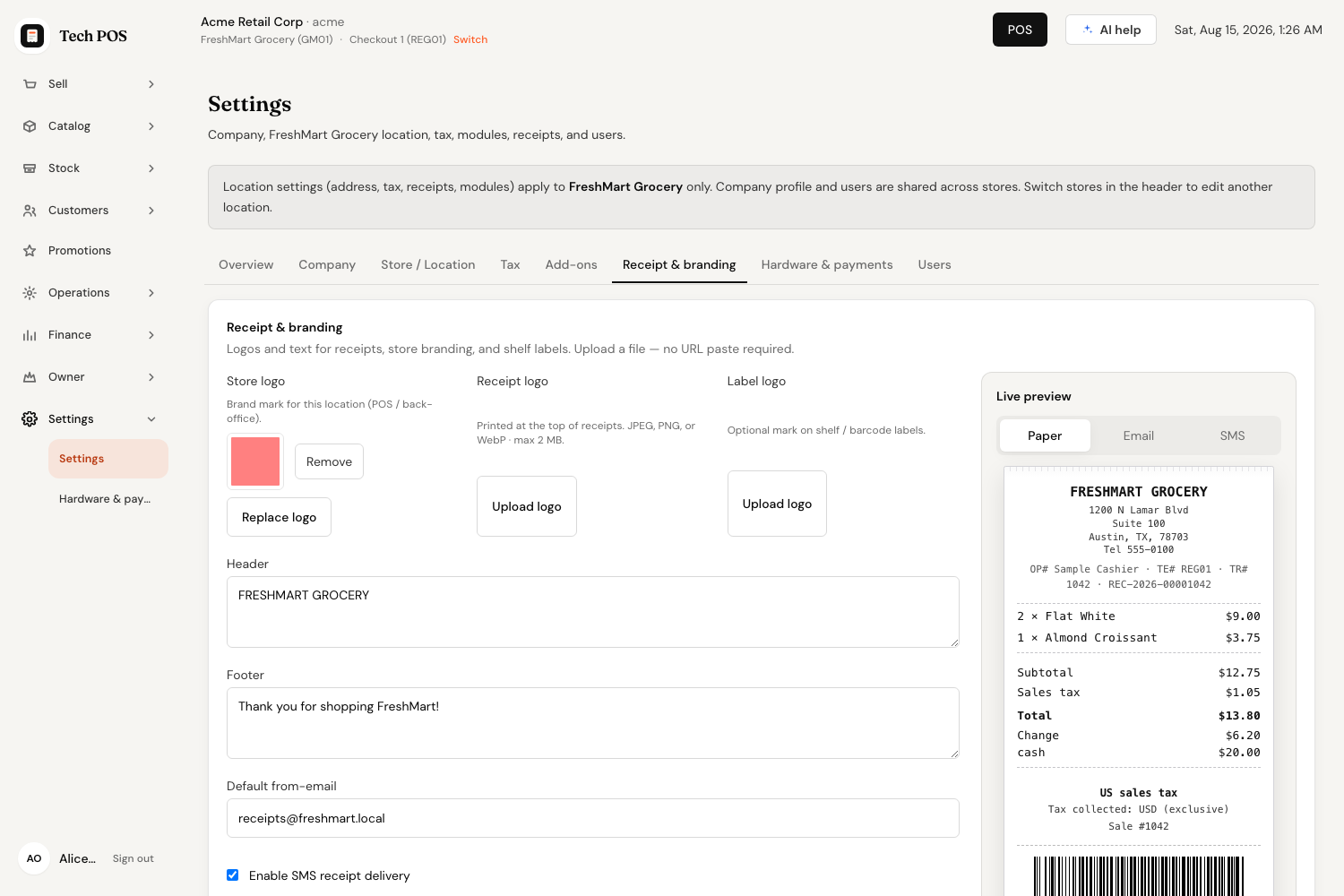
- Upload a Receipt logo — JPEG, PNG or WebP, up to 2 MB. (Store logo is the mark used in the app itself and Label logo is for shelf labels; they are separate on purpose.)
- Type the Header — store name, address, phone.
- Type the Footer — thanks, return policy, opening hours.
- Watch the Live preview on the right. It says Updating… for a moment, then redraws.
- Tap Save receipt settings.
The preview is built by the same code that builds a real receipt, from a sample sale, so what you see is what will print. Under it the panel says Sample sale — nothing here is saved or sent — you can play with the wording as much as you like without ringing anything up.
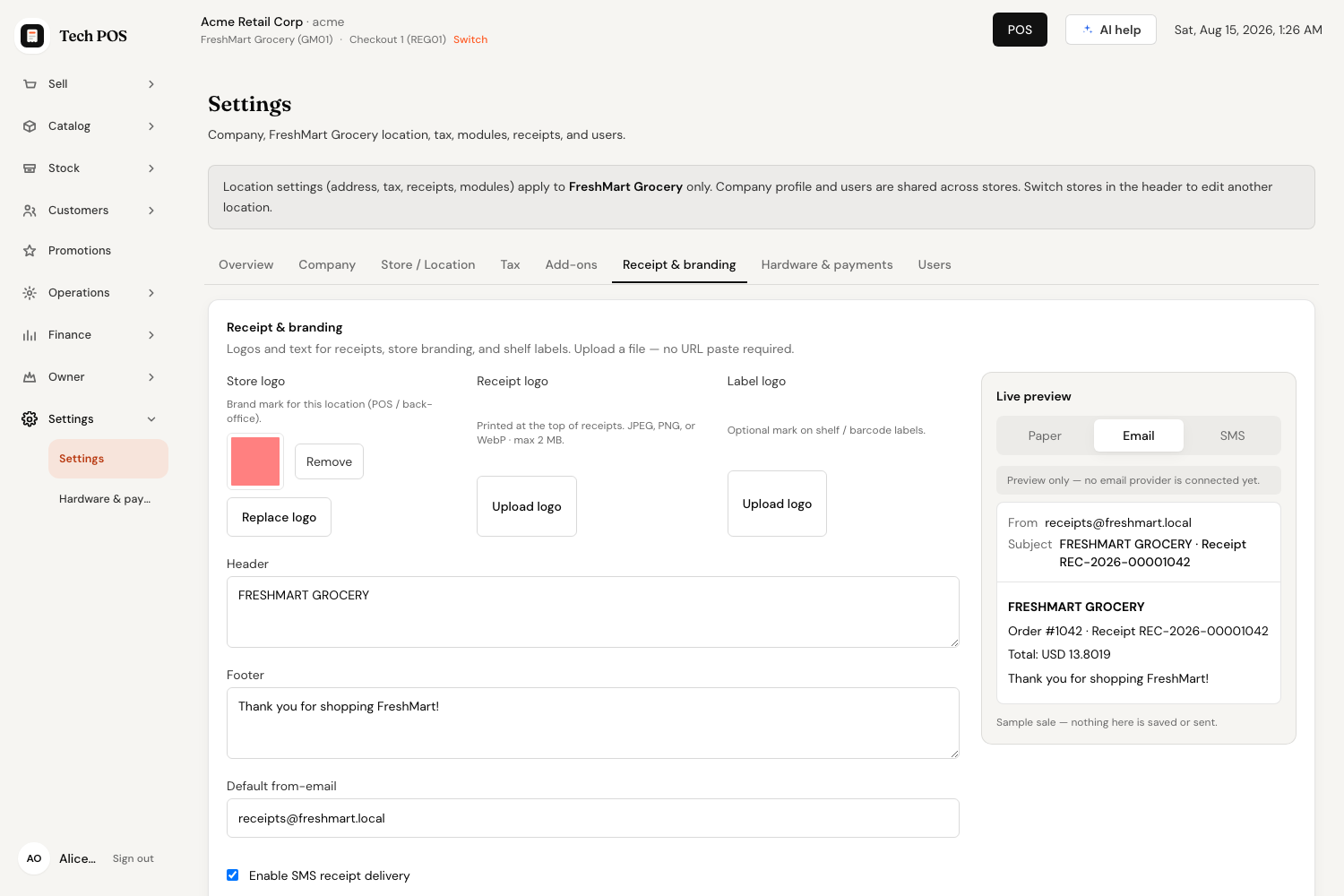
The preview has three tabs. Paper is the printed strip. Email shows the from address, the subject and the body the customer would receive. SMS shows the message as a text bubble with its character count, how many segments it costs, and its encoding — worth a look, because a single curly quote or emoji drops a message from 160 characters per segment to 70.
Email and SMS receipts
On the receipt screen you will normally see only Print. Email and SMS appear only once the system has real credentials for a provider — and each channel appears on its own, the moment its own key is in place. This is deliberate: without a key those buttons would write to a log file and tell the cashier the receipt was sent. A button that quietly goes nowhere is worse than no button.
What each channel needs:
| Channel | Needs |
|---|---|
| Nothing. Always available. | |
| An email provider key on the server. Set a Default from-email in Receipt & branding so receipts come from an address that belongs to you. | |
| SMS | An SMS provider account, token and sending number on the server and the Enable SMS receipt delivery tick on the Receipt & branding tab. Both, not either. |
The preview tabs still work without any of it — they are marked Preview only — no email provider is connected yet so you can write and approve the copy before the keys arrive. Setting the keys up is covered in Email, SMS & keys.
Sending one
When a channel is live, the receipt screen grows a small panel headed Also send digitally?:
- Tap Email, SMS, or All of them (which adds the printout too).
- Type the address in Email address, or the number in
Phone (E.164) — that means the international form, like
+15551234567. - Tap Deliver receipt.
- Each channel reports for itself underneath: Sending…, then Sent, or the reason it failed.
Which channels are ticked by default comes from Default receipt channels (post-pay prompt) in settings — Email, SMS, Hard copy (print). A channel with no provider is never pre-ticked, whatever the default says.
The restaurant lane ends a check on a Payment complete panel with the same print, email and SMS controls, and the same rules about which appear. A split check gets a receipt per part, so the guest who paid half walks away with a real receipt rather than a printed preview.