Taking orders
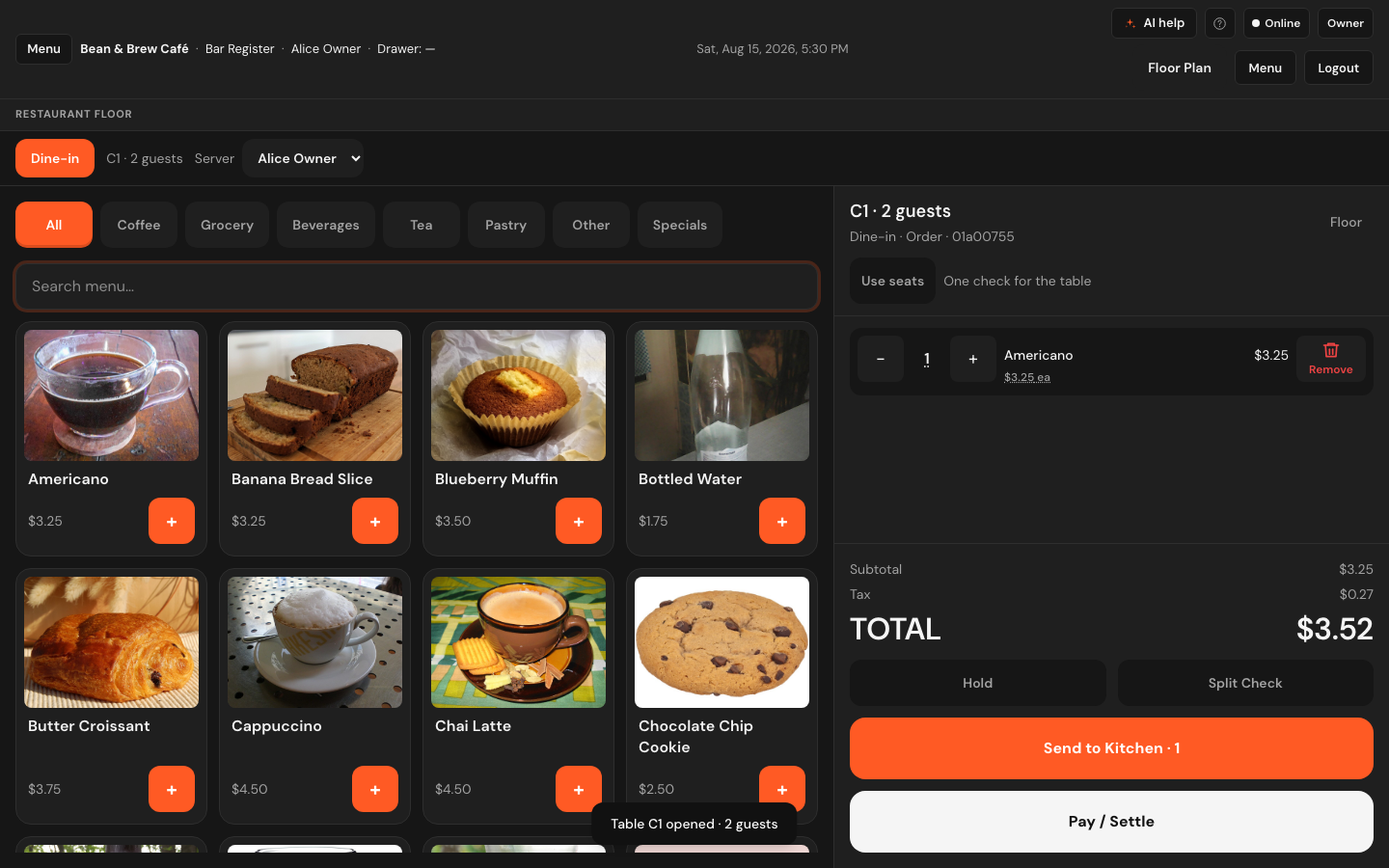
The order pad. Menu on the left, the ticket on the right, and two big buttons at the bottom: one sends food to the kitchen, one takes the money. This page covers everything between those two.
Getting here
Three ways in, and each one fixes how the order will be served:
| From the floor | Chip reads |
|---|---|
| Tapping a table | Dine-in |
| + Takeaway | Takeaway |
| + Delivery | Delivery |
How an order is served is decided when it starts and cannot be switched mid-ticket. Offering the choice again only invited people to change it after the kitchen was already cooking — at which point the pass has a dine-in plate for someone standing at the counter with a bag.
Adding items
- Tap a category tab, or type into Search menu… The cursor sits in that box already, so a scanner or a keyboard works without clicking anything first.
- Tap the item's card, or its orange +.
- The modifier sheet opens (see below). Tap Add to order to put it on the ticket.
An item with a photo shows it; one without gets a coloured tile with its initials, so every tile still reads as itself across the grid.
Running out — the 86 mark
Press and hold an item's card for about half a second (or right-click on a desktop) to mark it 86. The tile dims, gets a red 86 badge and stops being addable; tapping it says Item unavailable instead of quietly adding it. Every till in the restaurant sees it, which is the point — the kitchen tells one server, and nobody else sells it again.
Modifiers
Tapping an item opens a sheet with the item's name and price at the top and its modifier groups below. Each group is labelled with what it wants — (required — select 1), (optional — up to 3) — and each option shows what it adds to the price. The running price updates at the top as you tap, and the button at the bottom names it: Add to order · $4.50.
- Tap the options the guest asked for. Groups that only allow one swap your choice rather than stacking.
- Type anything the buttons cannot say into Special note — no ice, allergy: nuts. It prints on the kitchen ticket.
- Tap Add to order.
While a required group is unanswered the button stays dead and the sheet tells you which one: Select …. An item with no modifier groups still opens the sheet so you can leave a note — it just says Optional kitchen note instead of listing choices.
Fixing the ticket
| To | Do |
|---|---|
| Change a quantity by one | The − and + either side of the number. |
| Type a quantity | Tap the underlined number. A keypad opens — type it and tap Apply. |
| Take a line off | Tap Remove at the end of the row. |
| Change a price | Tap the … ea price under the item name. Only appears for roles allowed to override prices. |
A line the kitchen already has says so underneath — 2 with kitchen · 1 not sent — so you can see at a glance which half of the table is already cooking.
Seats are optional
By default the whole table is one check, and the ticket says so: the button reads Use seats with One check for the table beside it.
- Tap Use seats. A row of chips appears — Seat 1, Seat 2, one per guest, with a count of what is on each.
- Tap the seat you are ordering for, then add their items. Everything you add lands on that seat.
- Move between seats as you go round the table.
- Tap One check to drop back to the whole table.
Most tables pay as one check. Making every server assign a seat to every plate, for the minority of tables that split, is work with no payoff. Turn seats on for the table that says "we're paying separately" and leave them off for everyone else.
Takeaway and delivery at the counter
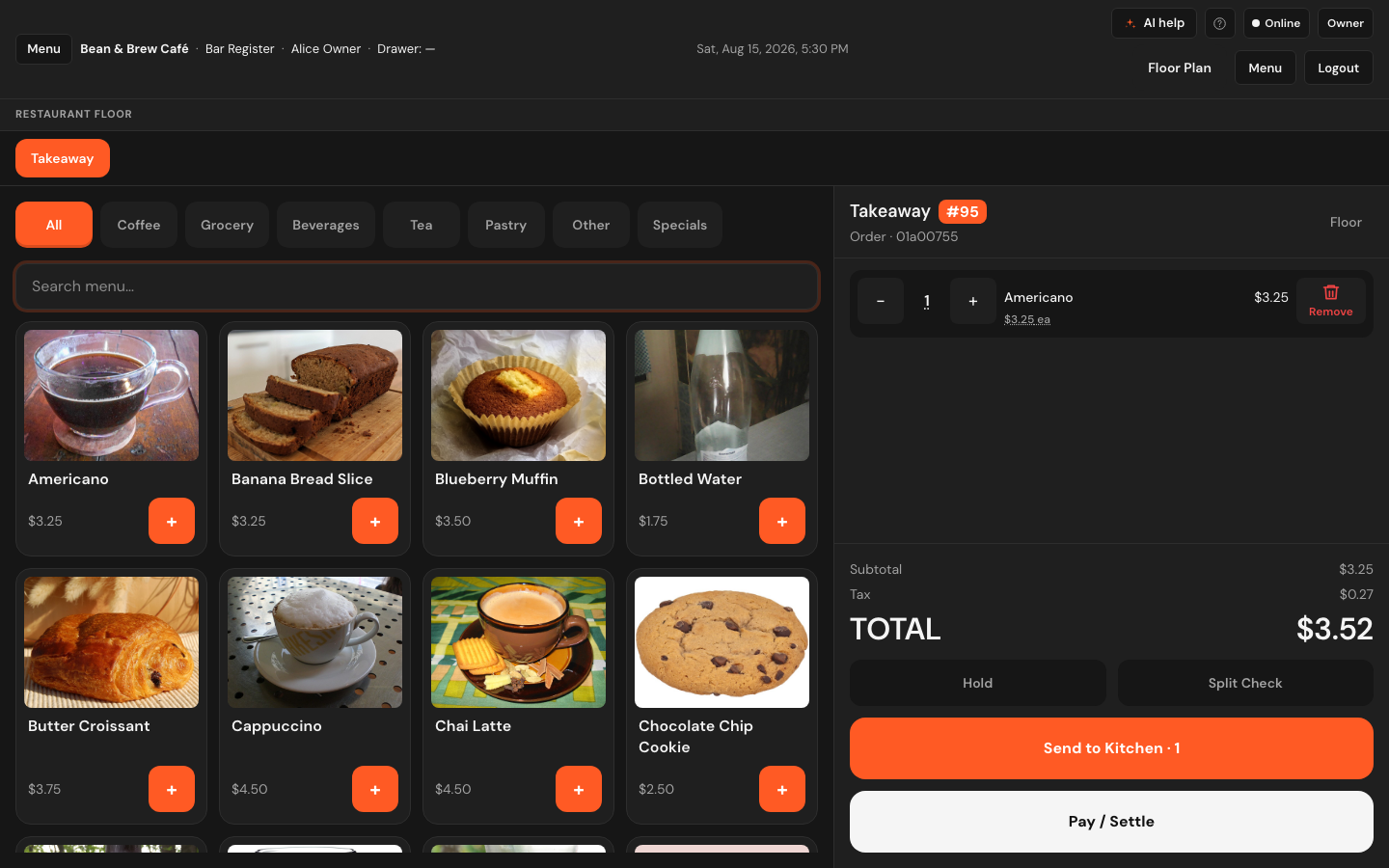
A walk-in coffee or a phone order needs no table, and seating one to sell a flat white would lie to the floor plan. From the floor, tap + Takeaway or + Delivery and the order pad opens with no table attached.
The pickup number
A counter order gets its number the moment it starts, printed large next to the word Takeaway — #84 in the picture. Say it to the customer as you take the order. It is the order's own number, the same one the kitchen board shows on the ticket, so "eighty-four!" across the counter means something to everybody.
Delivery details
A delivery order asks for the drop-off straight away, and you can reopen it from Add delivery details / Edit delivery details in the bar above the ticket. Fill in the recipient, phone and address and confirm; the delivery fee is added to the check automatically.
You cannot settle a delivery order without an address — the screen says Capture delivery address before pay and opens the form. A delivered order with nowhere to deliver it to is not an order.
Delivery only appears if the store has the delivery add-on on and your role can manage deliveries. If the store has no Delivery fee product set up, the screen says so rather than silently charging nothing.
Sending to the kitchen
The big orange button at the bottom counts what is waiting: Send to Kitchen · 3, or Send to Kitchen · 2 new once part of the table is already away.
- Tap Send to Kitchen, or press F8.
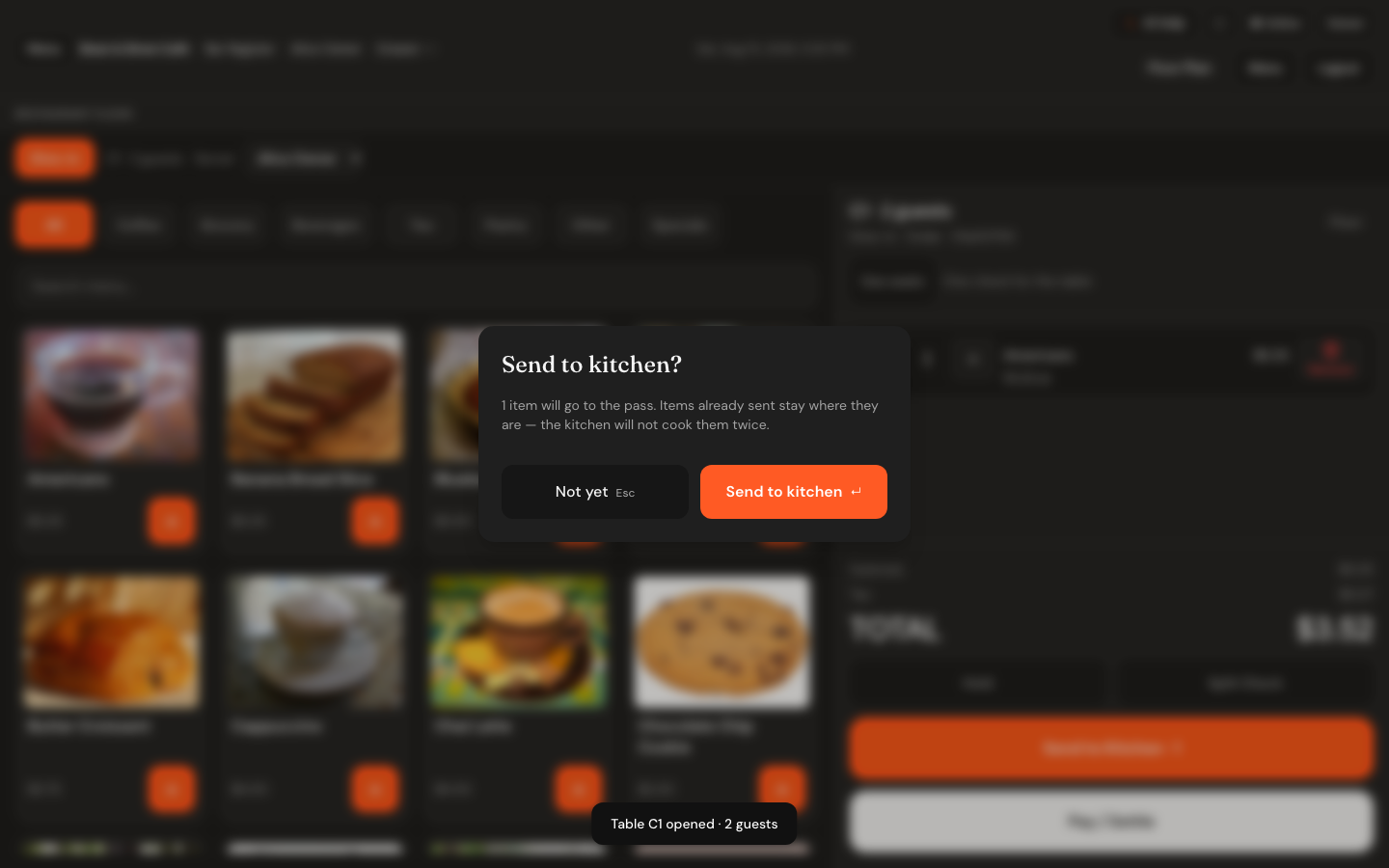
- A confirmation appears: Send to kitchen? — N items will go to the pass. Items already sent stay where they are — the kitchen will not cook them twice.
- Tap Send to kitchen to fire, or Not yet to go back.
Things the kitchen is never told about
Not everything you sell has to be made. A wrapped croissant is already baked and a bottled drink is already cold — they need somebody to put them in a bag, not a chef. Printing those at the pass alongside the food teaches the kitchen to skim the ticket, and the expensive day is the one where they skim past something real.
So a menu category can be marked counter serve in Settings → Restaurant floor → What goes to the kitchen. Lines in that category never fire. After sending, the confirmation lists them under Take these from the counter, because whoever is carrying the tray still has to pick them up.
- Everything starts as made to order. A restaurant that never opens that screen fires exactly what it fired before.
- A single product can disagree with its category — a toasted croissant in a self-serve pastry case still goes to the kitchen.
- An order of nothing but counter-serve items will not send. The till says so rather than opening a ticket with no food on it.
More than one kitchen
Each category can also name the station that makes it — the barista, the grill, the pass. One order then becomes one ticket per station, so the barista is not reading the grill's list and the grill is not reading the barista's. The confirmation shows each ticket number. If you have only one station, nothing changes.
Firing is the one action on this screen a server cannot take back — food starts being cooked and money starts being spent. Everything else on the ticket can be edited; this cannot, so it is worth one tap of confirmation. If the send fails, the dialog stays open rather than closing and looking like it worked.
Sending in rounds
You do not fire a table once. Send the drinks, go back, add starters, send again — only the items the kitchen has not seen go across each time. That is the whole reason the button counts new items rather than all of them, and why re-firing a table cannot get its food cooked twice.
When everything is away the button greys out and reads All sent to kitchen. Pressing F8 at that point just says Everything on this ticket is already with the kitchen.
What happens to the ticket after that is on Kitchen display.
What the till says once it is away
After a successful send, a panel confirms it: With the kitchen, the table or order it came from, the ticket number the pass is now calling it by, and how many items went. That number is what a cook shouts when the food is up, so it is worth reading before you tap Done.
The same panel carries the second button — Sent by mistake? — because the moment a server realises they fired the wrong table is usually the second after they fired it.
Correcting an order the kitchen already has
Mistakes after firing are ordinary: the wrong table, a guest who changes their mind, the same round sent twice. There is no silent undo, because the kitchen is already reading the ticket — what there is instead is a way to tell them, which is exactly what you would do if you walked to the pass.
- On the panel that appears after sending, tap Sent by mistake?. Later, the button under Send to Kitchen reads Sent something wrong? Correct it with the kitchen.
- The till reads the kitchen board first and tells you what has actually happened to the food — see the banner below.
- Everything on that round is ticked by default. Untick anything that should still be cooked.
- Give a reason. Wrong table, Guest changed their mind, Sent twice and Kitchen cannot make it are one tap; you can type your own.
- Decide about the bill with Take it off the bill too.
- Tap Tell the kitchen.
The banner at the top of that window is the honest part, and it changes with what the kitchen has already done:
| Kitchen board says | What you are told | What it really means |
|---|---|---|
| Not started | The kitchen has not started this | Free. The lines come off the pass and nothing is wasted. |
| Cooking | This is being cooked now | The cook sees the cancellation and stops, but some of it may already be wasted. Tell the pass as well. |
| Ready or served | This food has already been made | Pressing a button does not un-cook it. The only real decision left is whether the guest is charged or the dish is comped. |
Cancelled lines do not vanish. They stay on the kitchen ticket struck through, under a red ✕ N cancelled — stop cooking banner, with the reason you gave. A line that disappears is a line a cook keeps cooking. If the whole round is cancelled, the card stays on the board for ten minutes so the kitchen cannot miss it, then clears.
Telling the kitchen to stop and taking the item off the guest's bill are different things, and they need different permissions. Any role that can work the pass can stop the cooking. Removing the charge needs the same permission as voiding a line on a bill — if your role does not have it, the window says so and still sends the cancellation to the kitchen.
Paying
- Tap Pay / Settle, or press F12 (or End).
- The sheet confirms the table and the amount due. Tap Pay in full.
- Choose cash or card.
- Type what the guest handed over, or tap Exact, 20, 50, 100. The line underneath reads Change due or Short by ….
- Tap Settle ….
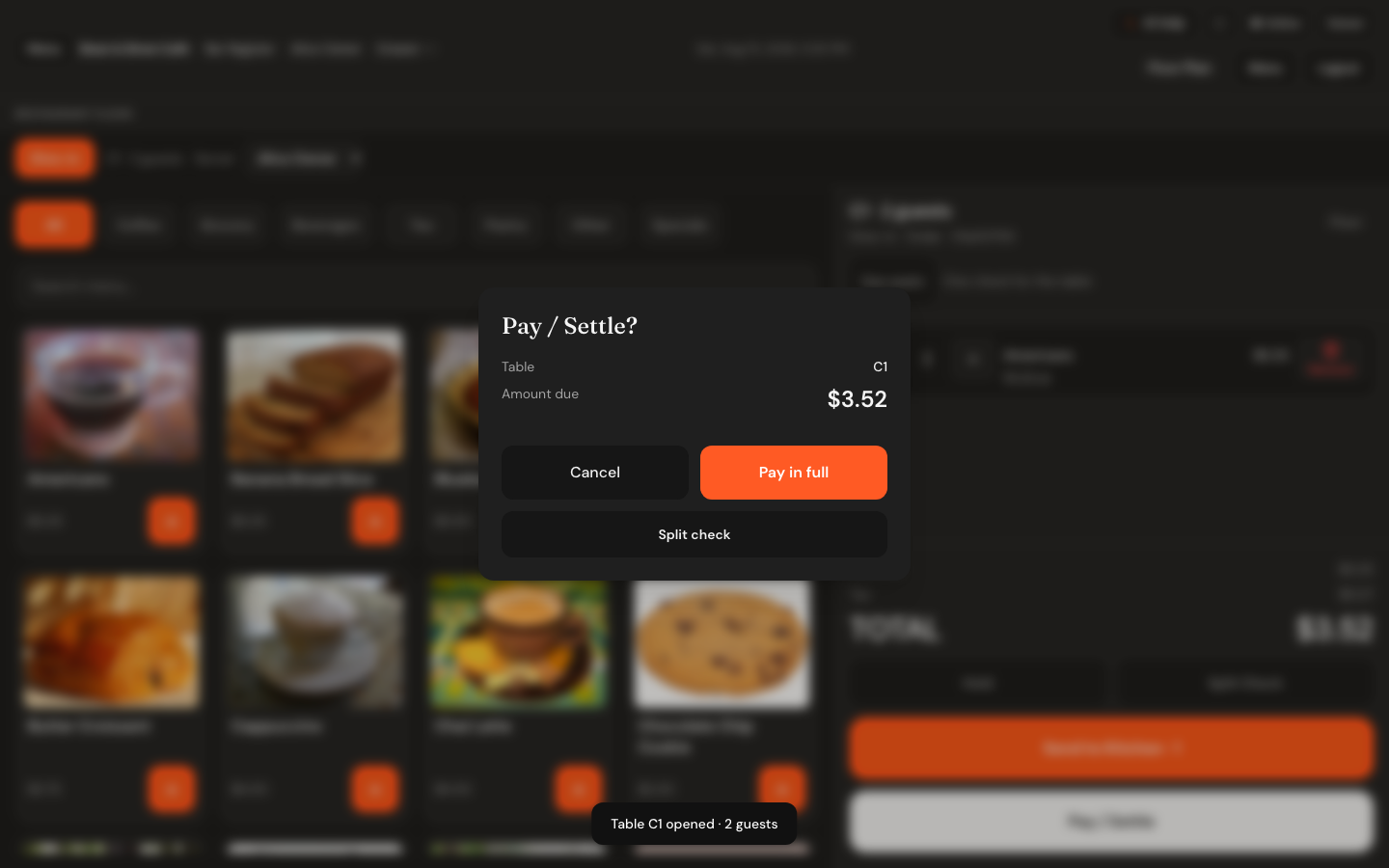
F9 and F10 jump straight past the confirmation to a cash or card tender, because pressing them has already said "pay, this way".
Type more than the due on a card tender and the sheet says Card must match due — use Exact, and refuses to settle. Change comes out of the drawer, and there is no drawer on a card: an over-charged card is a refund waiting to happen, so the till will not let you create one. Cash may be over — that is what change is for.
Card payments open the card machine window; the guest taps or inserts and the check settles when the machine approves. When it is done, the table is freed on the floor plan and a Payment complete panel appears with the receipt — see Receipts. Tap Done · New order to go back to the floor.
Splitting a check
- Tap Pay / Settle, then Split check. (The Split Check button on the ticket goes to the same place.)
- Choose how to divide it:
- By seat — one check per seat, from what each seat ordered. Needs items on two or more seats; if there are not, the sheet says Seat split needs items on 2+ seats.
- Equal — type Number of checks and the total is divided evenly.
- Custom — type the amounts separated by commas. They have to add up to the total.
- Tap Create split checks.
- You land on Tender split, listing each check and its amount. Tap one, take its money exactly as above, and tap Settle …
- Paid checks are marked · paid and the sheet moves you on to the next unpaid one. When they are all done it says All checks settled.
Each part is a real sale in its own right and gets its own receipt, so the guest paying a third of the table walks out with something that exists in your records rather than a printed guess.
Keys on the order screen
| Key | Does |
|---|---|
| F1 | Show or hide the shortcut help. |
| F2 | Hold. |
| F3 | Back to the floor plan. |
| F8 | Send to Kitchen — only what has not gone yet. |
| F9 | Pay cash. |
| F10 | Pay card. |
| F12, End or Numpad + | Pay / Settle. |
| Esc | Clear the menu search and put the cursor back in it. |
These match the retail till key for key wherever they can — F1, F2, F9, F10, End, Esc mean the same thing on both. F8 and F12 are restaurant-only. On a till set up as touch-only the key strip is hidden, since advertising keys to someone with no keyboard helps nobody.
Hold on the restaurant ticket parks the order locally on this screen and says so. For a ticket you need to put down properly and pick up elsewhere, leave it on its table — the tab stays exactly as it was.